
I NEED HELP SETTING UP MY CANTEEN WALLET ACCOUNT
FIND CLEAR SOLUTIONS TO COMMON QUERIES AND DISCOVER EASY-TO-FOLLOW INSTRUCTIONS
To register on our platform, you must have an RFID code. This unique code is available exclusively on the devices sold by the schools.
Once you acquire the RFID card, bracelet, key fob or code you can seamlessly proceed to both submit your RFID code and create your account simultaneously by following the steps in question 2.
Before you begin, make sure you have purchased the RFID card from your child's school.
Click the  icon on the header and start typing the RFID from the card you have purchased
at school, then click the "SUBMIT" button. The submit button will appear after you enter the
first six digits.
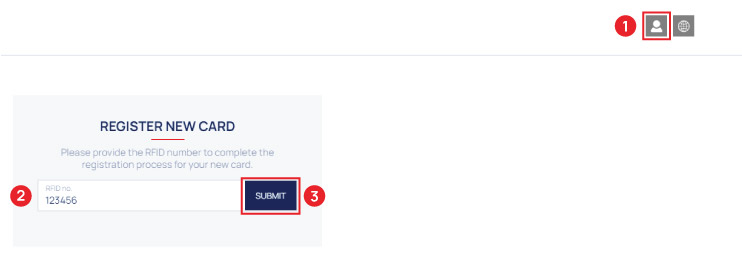
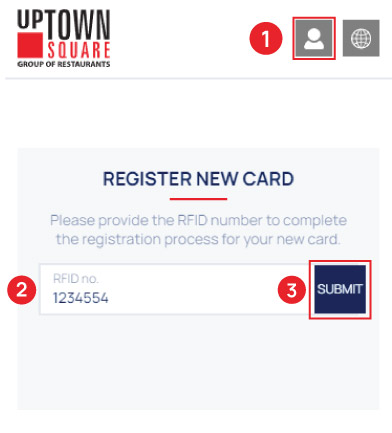
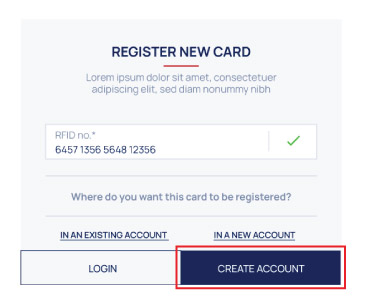
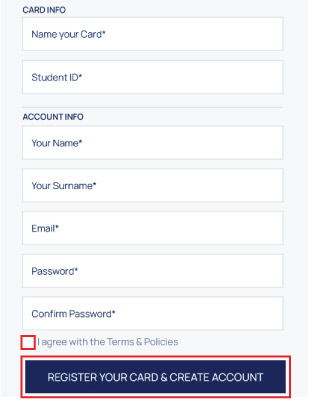
If your RFID number is correct, you can proceed to create your account by clicking “CREATE ACCOUNT”. Fill in all the required fields, agree with the policies and complete the process by clicking “REGISTER YOUR CARD & CREATE ACCOUNT”.
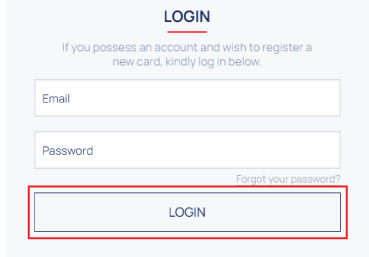
Once your account is created or if you already have an account, continue by logging in using your email and the password you created on our website.
Simply click on the icon and enter your email and password in the designated fields. If you
do not have an email and password, you need to follow the steps in question 1 and 2.
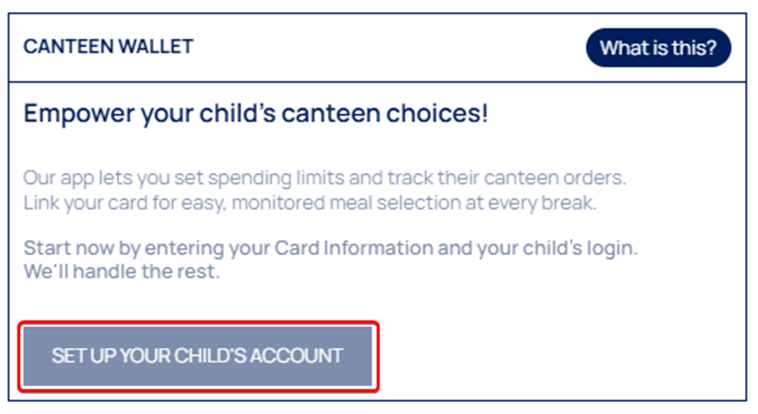
After logging in, click on "SET UP YOUR CHILD'S ACCOUNT" to link your account with the canteen user.
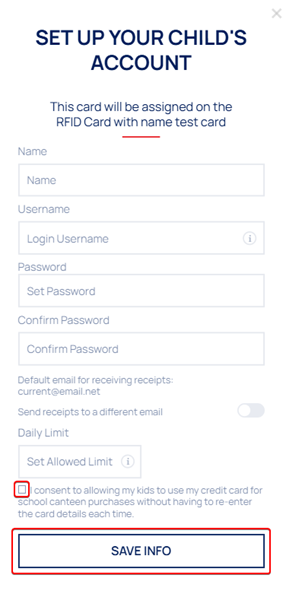
A popup window will appear where you must enter your details or your child’s details to create the Canteen Wallet account.
You may also provide an alternative email address, different from your main account email, to receive payment receipts.
Next, set a daily spending limit, which will prevent purchases above the specified amount.
Once you have entered all the required information, provide your consent and save the details.
Please note that the selected username must be unique within our system.
After creating the Canteen Wallet account, you can assign a payment card to the user and provide a nickname for the card. This card will be saved and linked to the Canteen Wallet account, allowing the canteen user to complete future purchases without re-entering card details each time.
If you wish to proceed with saving the card, you will need to enter a nickname for it, provide your consent, and press the button to enter your card details.
Alternatively, you may close the popup and add a card later.
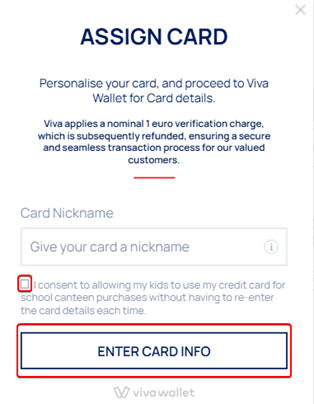
If you choose to save a card immediately, you will then be redirected to the Viva Wallet page to complete the card registration.
Once the card is successfully registered, your Canteen Wallet account will be fully set up and ready to use.
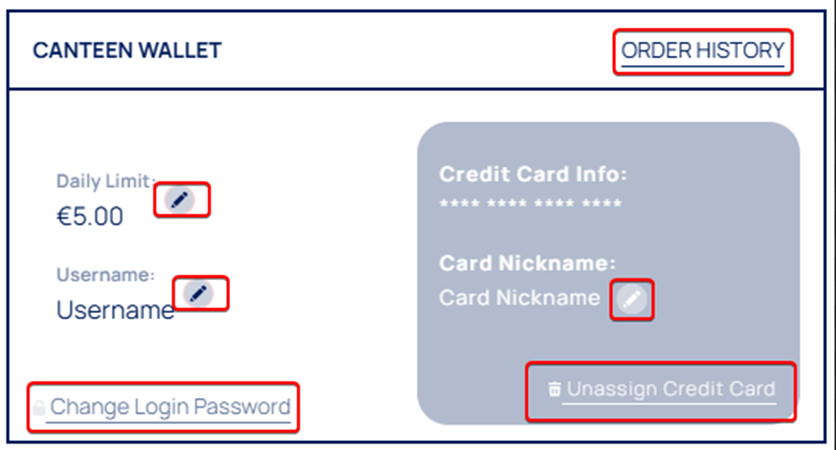
You can manage your account at any time by:
- Assigning or removing payment cards
- Changing your login password
- Updating the daily spending limit
- Updating the username, name, or receipt email
- Editing the card nickname
- Reviewing canteen order history
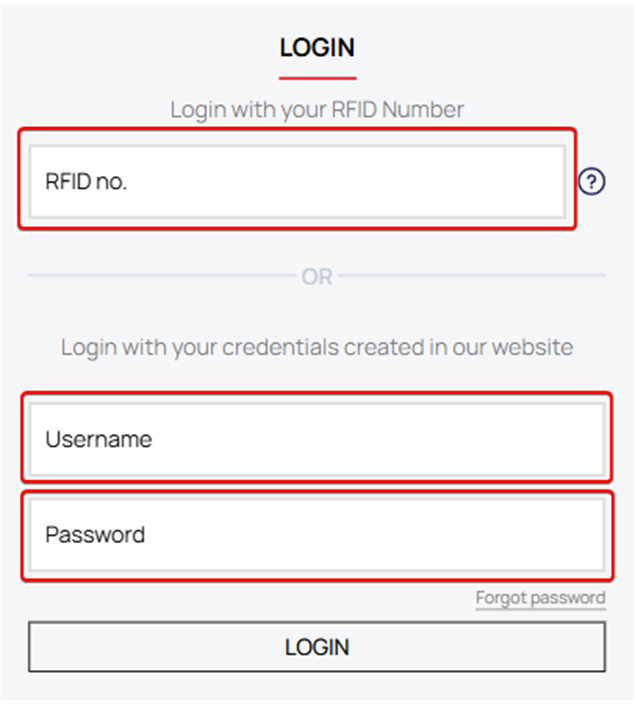
To log in, enter the credentials you created for the Canteen Wallet account in the application.
There are two ways to log in:
- Using your RFID card number, or
- Using your username and password
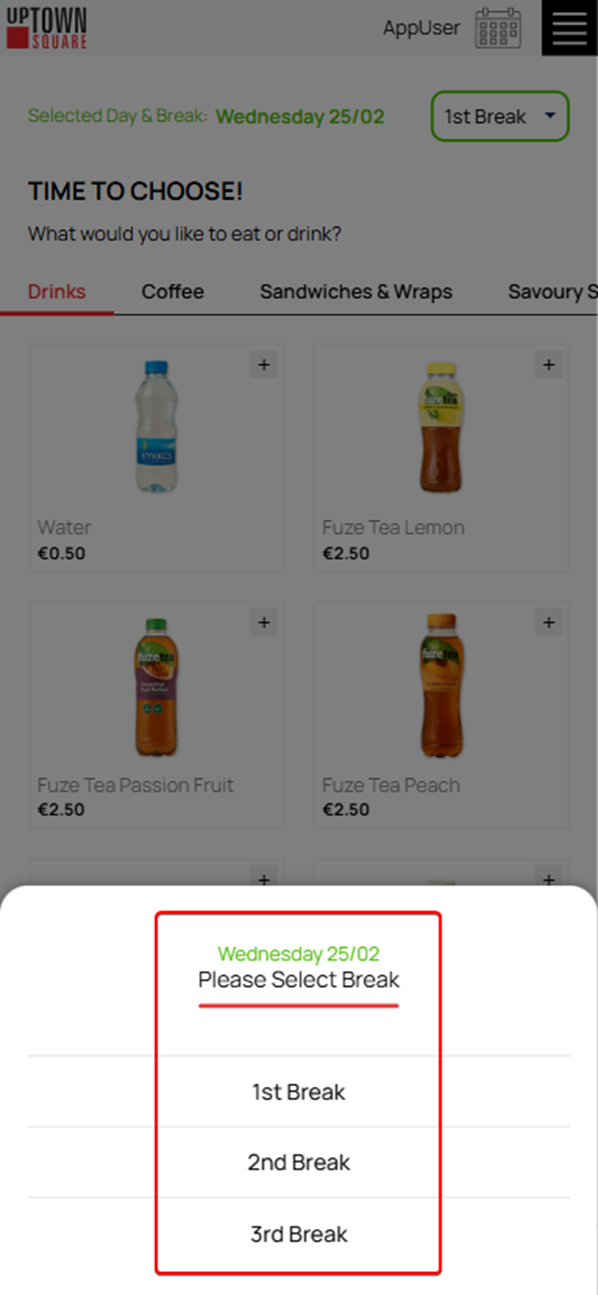
After logging in, select the break and the day for which you want to place an order.
You can then browse and select the products and quantities you wish to order for the selected break and day.
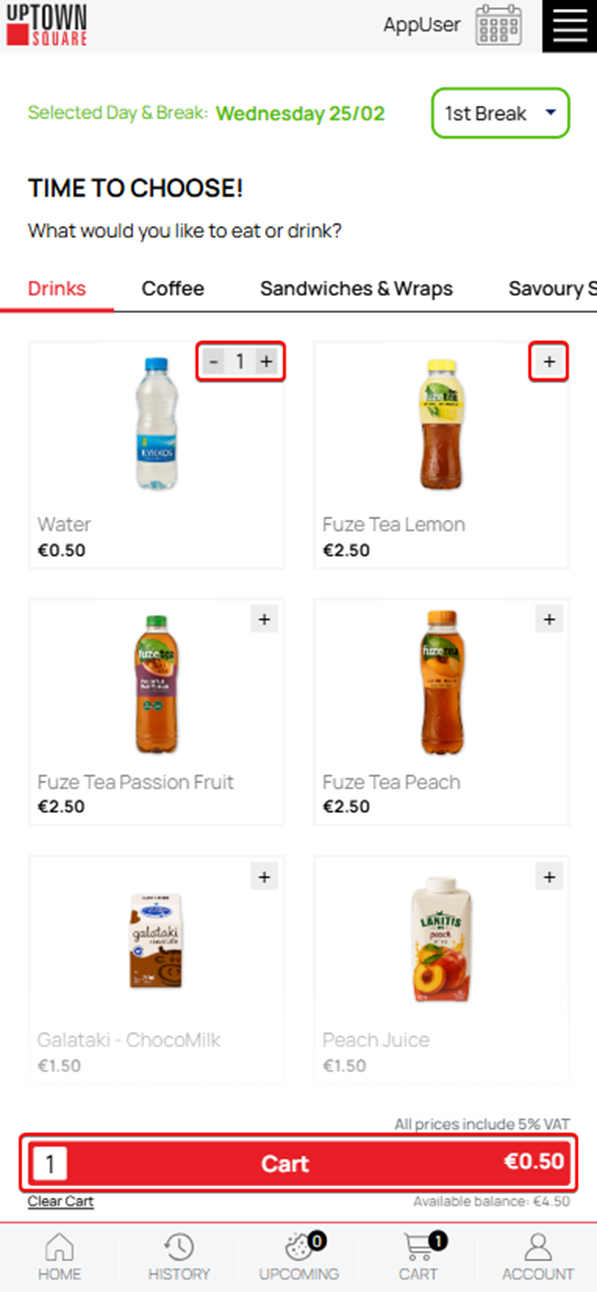
Once you have made your selections, proceed to the cart to review your order and choose your payment method. The available payment options depend on where the order is placed.
Mobile Application
When placing an order through the mobile application, you can pay by:
- Using a saved card linked to your account
- Entering a new card manually
POS Kiosk
When placing an order through the POS kiosk, you can pay by:
- Using a saved card linked to your account
- Paying with a physical card via the POS terminal
Click “Continue” to proceed.
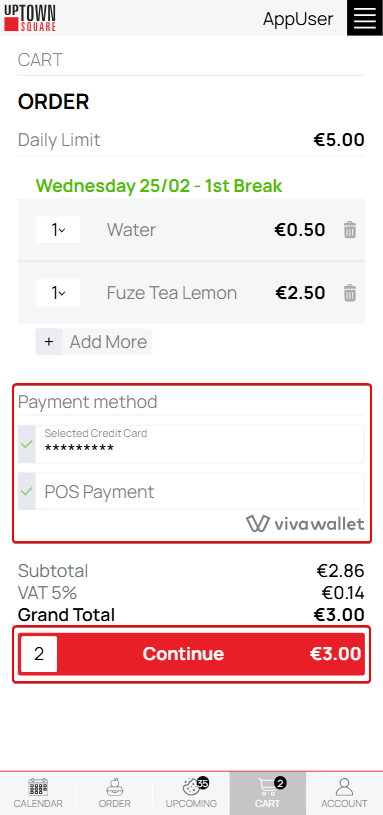
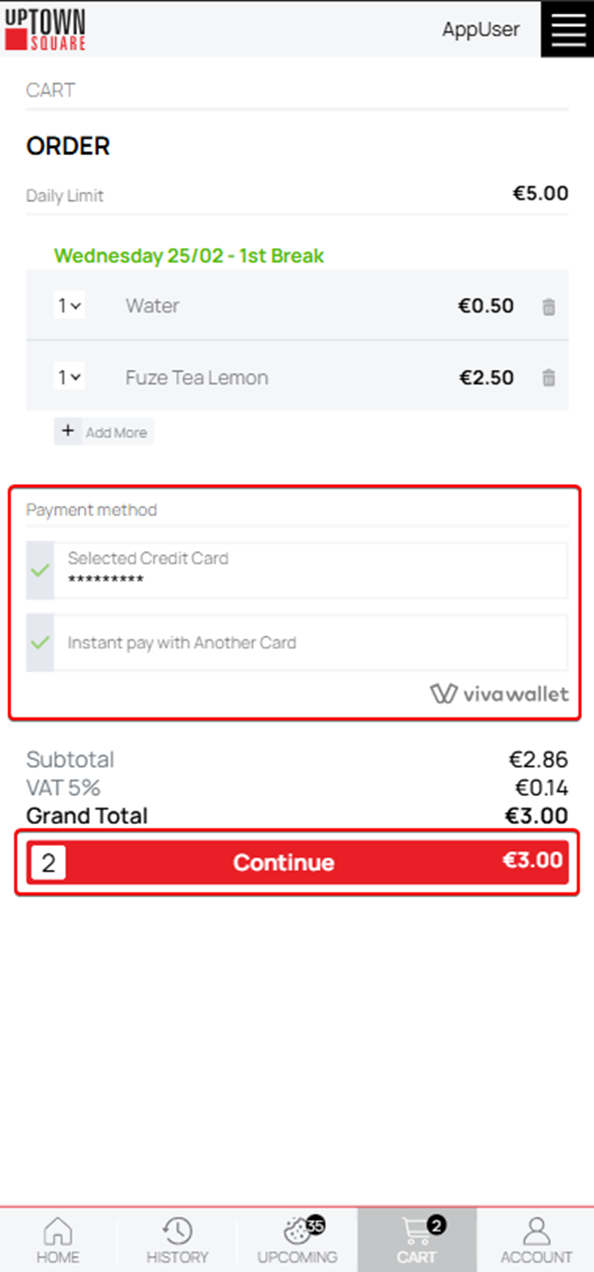
At the final checkout step, review your order details and payment method, then click “Pay Now” to complete the payment.
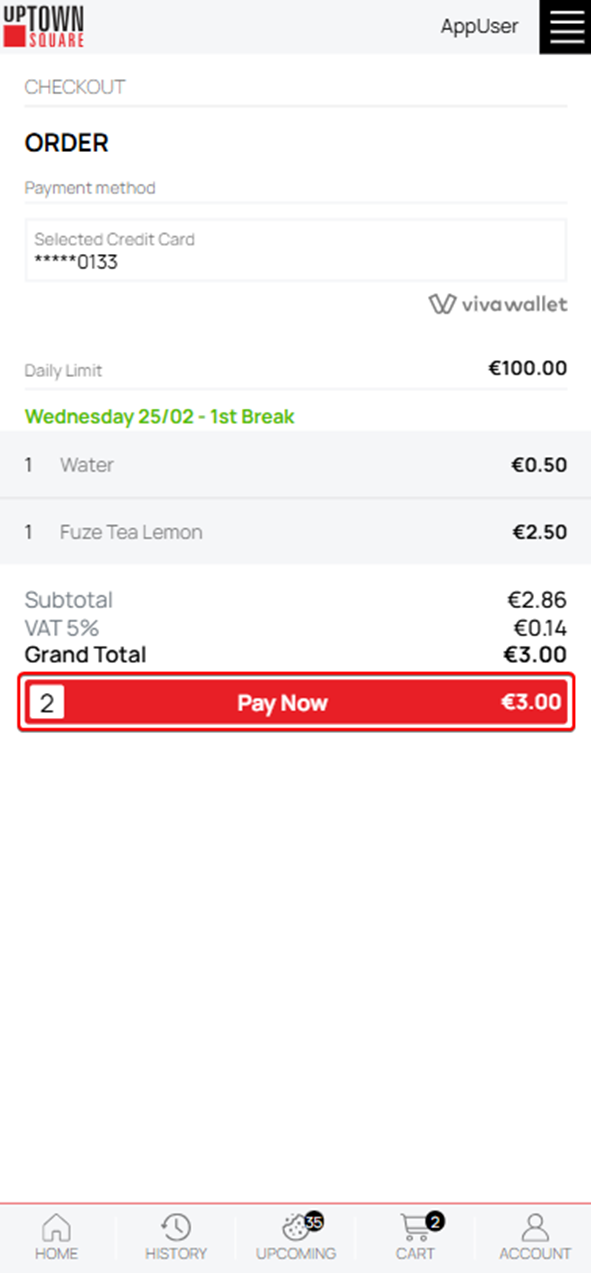
After successful payment, you will be redirected to a confirmation screen.
A receipt will be sent to the email address designated for receiving invoices, as specified by the parent in the account settings.
You can place another order for a different break and download the receipt (if ordering through the mobile application).
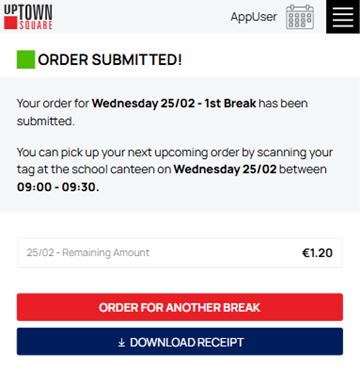
You will also be able to:
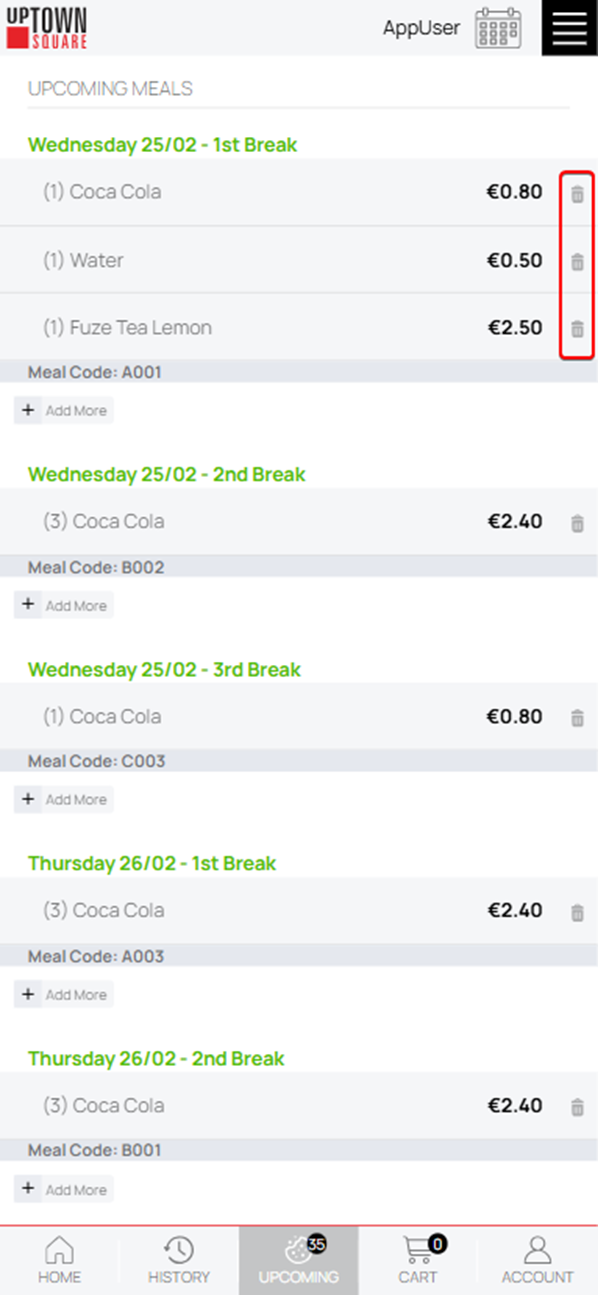
- View your upcoming meals
- Cancel orders if allowed
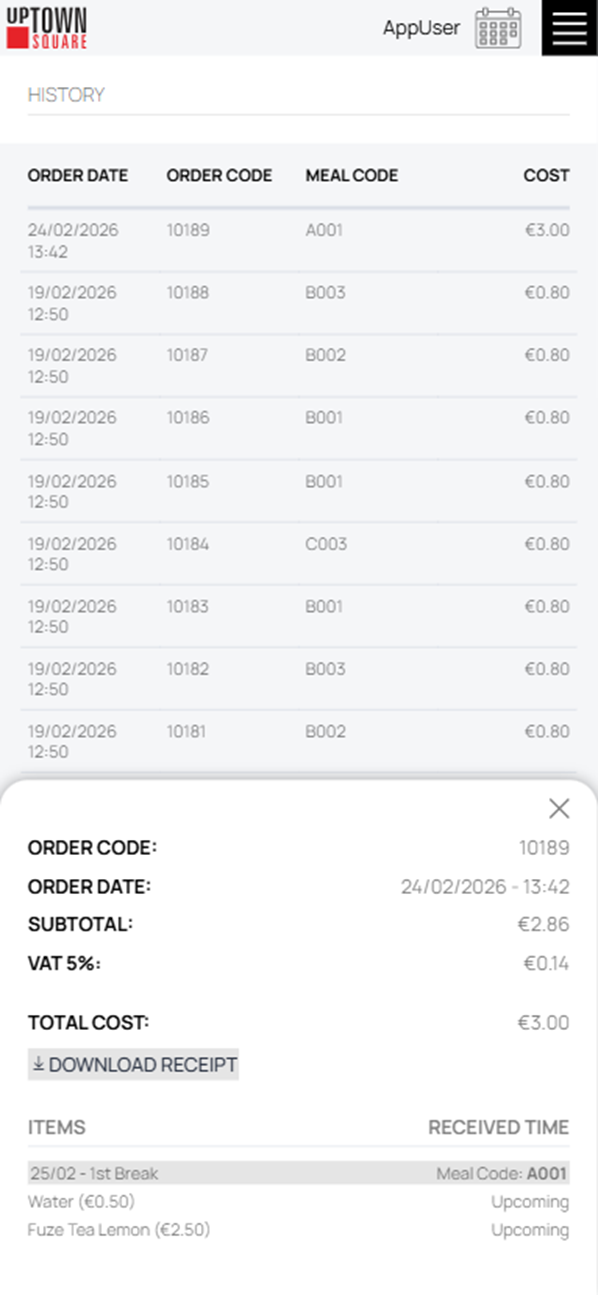
- Review your previous orders and their details in the history section
When it's time to collect your meal, simply scan your RFID card or bracelet at the cashier, and your meal will be provided. Alternatively, you can present the printed receipt you received from the kiosk.